Register
A step-by-step guide to joining the Capacity4dev community
Thank you for your interest in joining the Capacity4dev platform! Registration will give you access to resources, communities, and collaboration opportunities. This guide walks you through the registration process step-by-step.
To become a member:
- Step 1: Access the Registration page
- Step 2: Choose either "I don't have an EU account" or "I already have an EU account"
- Step 3: Complete your registration on Capacity4dev
- FAQ
Step 1: Access the Registration Page
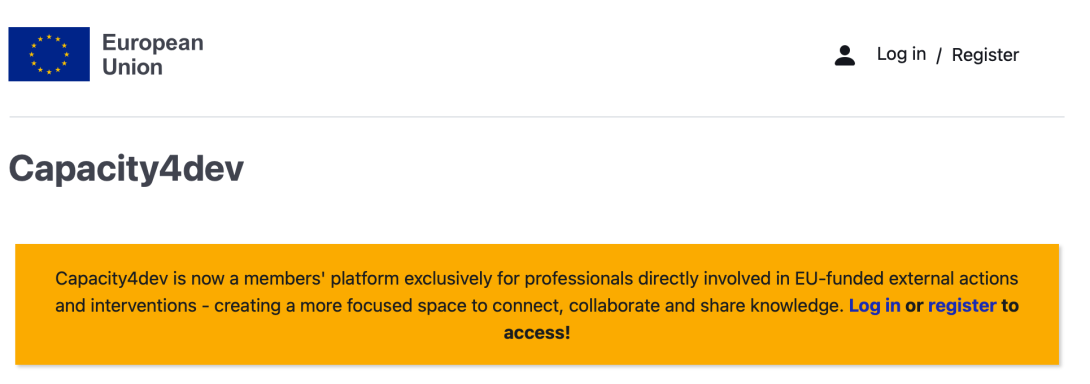
Navigate to the Capacity4dev registration page by clicking on the "Log in / register" section at the top right corner of the page OR in the yellow banner beneath.
Step 2: Choose either "I don't have an EU Login account" or "I already have an EU Login account
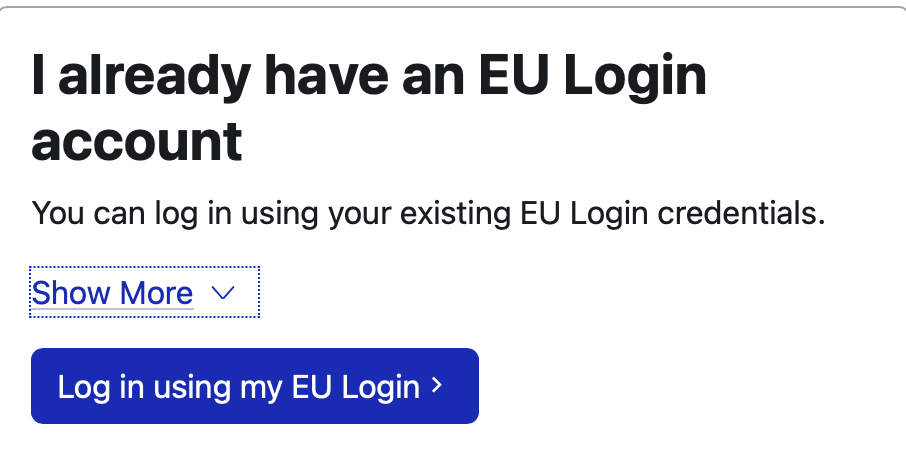
- If you already have an EU Login account, click on “Log in using my EU Login ". Please note that your EU Login account must have multi-factor authentication (MFA) enabled - namely via the EU Login mobile app - to be able to complete your registration as a new Capacity4dev member. For further details, please see the MFA instructions on the EU Login Portal.
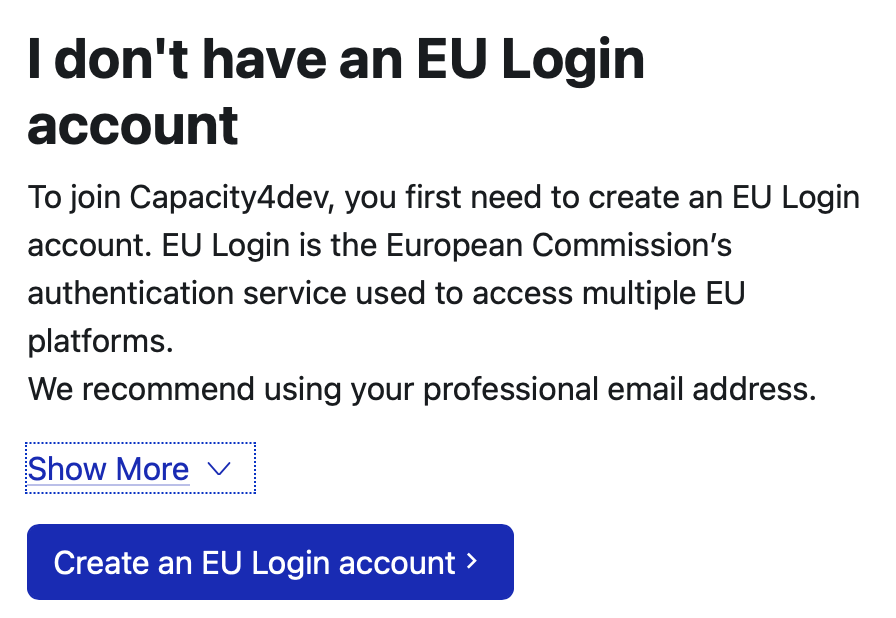
- If you don’t have an EU Login account, click on “Create an EU Login account". Accept the Terms & Conditions and fill in your information, using your professional email address, as this will facilitate at a later stage your membership validation process. EU Login is the European Commission’s user authentication service, available to both EU staff and external users worldwide, providing access to a range of EU online services. You can find all the related information on how to set up your account on the EU Login Portal. Please note that your account must be set up with multi-factor authentication (MFA) - namely via the EU Login mobile app - to be able to complete your registration as a new Capacity4dev member. For further details, please see the MFA instructions on the EU Login Portal.
Step 3: Complete your registration on Capacity4dev
You are almost there! Once you have set up your EU Login account with multi-factor authentication, return to the Capacity4dev platform to complete your member registration.
- Click “Register” again. If you are not automatically redirected to the registration form on Capacity4dev, then enter your EU Login credentials and authenticate.
- Complete the required registration information, including your Organisation and Organisation type (this is automatically pre-filled for EU institution staff).
- Select at least one Topic of interest and one Country of interest. These selections will appear in your profile and will be used to personalise your notifications.
- Choose your preferred notification frequency. Please note that notifications are switched off by default unless you select otherwise in your profile settings.
- Once you have completed all required fields, click “Save changes”.
Please note that depending on your email address, you may then be asked to complete an additional validation step.
- If your email belongs to an automatically recognised organisation - such as the European Commission, European External Action Service, an EU Member State institution or cooperation agency, or certain international organisations - your eligibility is validated automatically, and no additional information is required.
- If your email domain is not automatically recognised, you will be asked whether your organisation has a Participant Identification Code (PIC). Your organisation has a PIC number if it participates in EU programmes (call for proposals/call for tenders). To check your PIC, visit the EU Funding & Tenders Portal. Indicating your PIC number will speed up your approval process.
-
If yes: enter your organisation's 9-digit PIC number. This will be checked as part of the membership review.
-
If no: briefly explain how you/your organisation is involved in EU-funded interventions and why you would like to access Capacity4dev.
-
Once all required information has been completed, submit your registration. Registrations requiring an eligibility check will remain under pending review until the information provided has been validated by the Capacity4dev team. You may be contacted if further clarification is needed.
Once your account is validated, you will be informed by email and will be able to access Capacity4dev, explore Groups/Communities and Resources, participate in discussions, and collaborate with other members. If you need assistance, contact the Capacity4dev support team.
Happy collaboration and Welcome to Capacity4dev!
FAQ
If you are facing a problem from the EU Login, please check the EU Login guidance.
If you are facing issues with the registration from the Capacity4dev side, you can Contact our Team.
EU Login is the European Commission’s user authentication service, to provide secure and trusted access for its community. EU Login is open to both EU institution staff and to external users, based anywhere in the world.
It is mandatory for all users to have an EU Login account with multi-factor authentication (MFA) set up in order to register on Capacity4dev. Please create an EU Login with your professional email address.
EU Login works across many EU platforms - one account gives you access to multiple services.
EU Login is a separate entity from Capacity4dev; therefore, if you forget your password or have issues with your email, please refer to EU Login. Please note that your account must be set up with multi-factor authentication (MFA) - namely via the EU Login mobile app - to be able to register as a Capacity4dev member. For further details, please see the MFA instructions on the EU Login portal.
If you have logged in through EU Login but you cannot access Capacity4dev, please contact us.
We usually validate accounts within 48 hours during business days. If your account has not been validated within 48 hours, please contact us. We highly encourage users to register with their professional email addresses, as this facilitates the validation process.